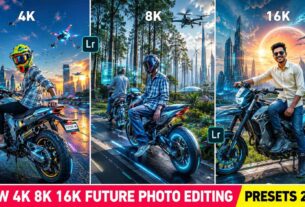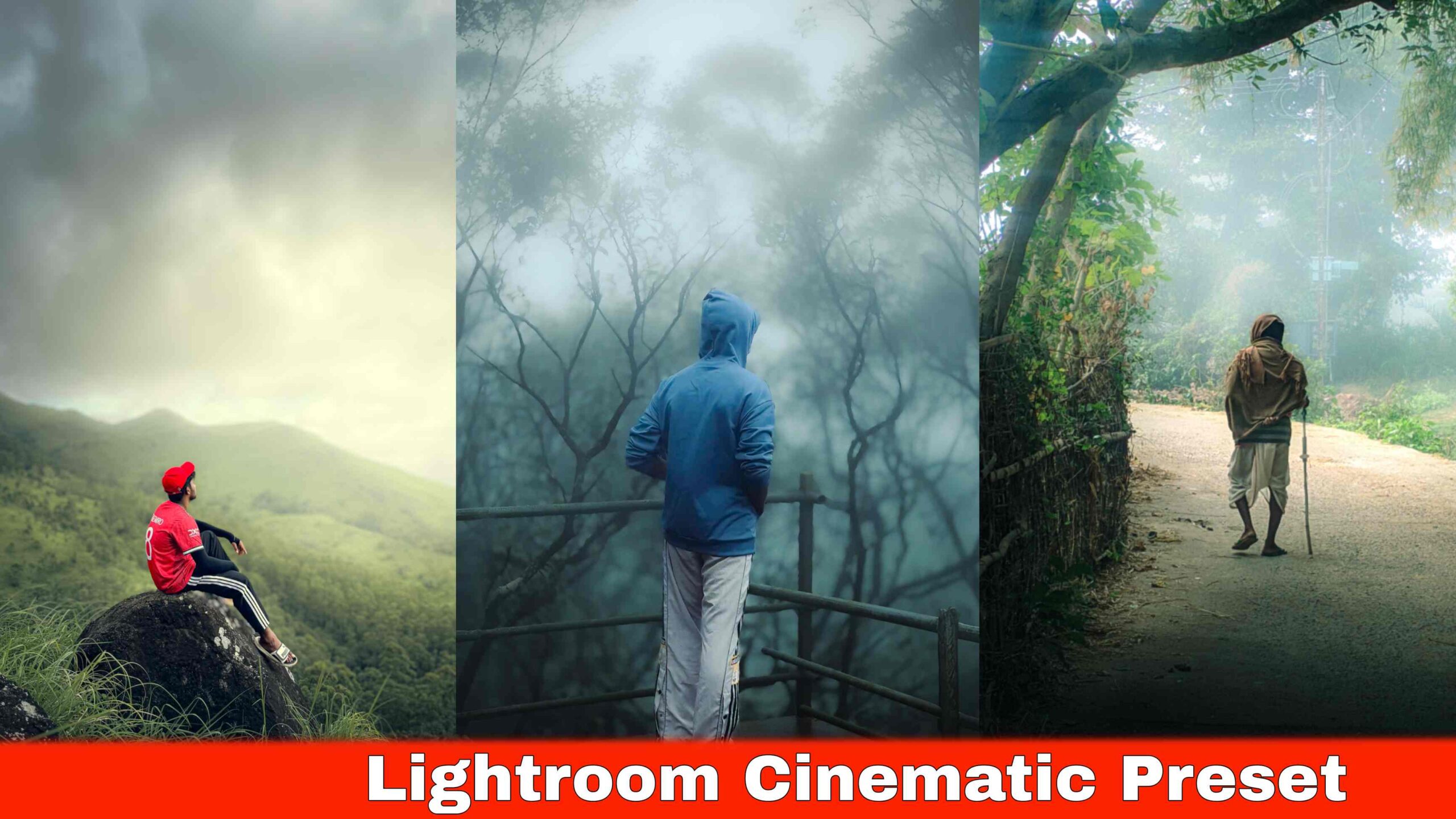
Lightroom cinematic presets – For the last few months, I have been noticing that in Instagram , a lot of people are talking about cinematic photos editing, where the particular person is completely changing a simple normal photo into a completely cinematic look, which looks sooo soo good that there is literally not even a single word to explain, a lot of people love creating thins kind of filmy cinematic look through AI because it really looks sooo good and attractive, Those who thinks to create this kind of cinematic looks with literally zero effort, they usually take help of an AI actually to create cinematic photo , And, also those who takes their own photo normally and thinks of to create such attractive cinematic looks, He/she uses the Lightroom app. Today we are about to tell you how to create such an attractive cinematic look manually, in this new AJ prompts article I’m going to share with you some presets of Lightroom article for cinematic photo editing look, and with the help of this you can give such attractive and cinematic look to any photos, Because whenever it comes to cinematic photo editing , the first name that comes to mind if Lightroom photo editing app. And in this AJ prompts article we are, sharing more different types of cinematic presets.
What Are Lightroom Cinematic Presets?
In cinematic photo editing, just a normal photo is edited in such a way that it exactly looks like a movie scene. And in those photos the colour,light,mood and edited in such a way that it directly looks dramatic, deep and Professional. And the Main role in this kind of editing photos is nothing but just color grading, the more best color grading you do the more your photos look solid attractive and perfect, And in cinematic photo editing look, in cinematic photo editing, the light and shadows are usually made deeper, to give the photo even more dramatic look . And for a movie like effect Teal and orange tones are used. And the background is slightly blurred just exactly like a movie to make it feel more like cinematic
And to make it feel more like a bollywood movie a lot of users also add little film grain or texture , A Darkened corner effect is also added , which makes the edges of the photo slightly Darkened and help the photos look more enhanced
Making all these edits ,changes and all is very difficult actually but no need to worry if you’re new, Because we have provided readymade presets, with all the settings already adjusted, you just need to copy the preset settings, and paste it on your photo. And your photo will be ready on click.
How To Use Lightroom Cinematic Photo Editing Presets
We have already shared different kinds of cinematic photo editing presets, with the help of those presets already shared in AJ Prompt article. First off all you need to do is save all the presets on your phone properly, Then choose your one proper visible and clear photo, try that the photo is clicked outdoors so that the presets work well on your photos, and that’s because the presets we have shared in this article and given to you is only for outdoor editing.some presets willl also work at indoor photos also as well as at outdoor photos also, oky so let us know now about wht we need to do after keeping our presets and photo ready.
Install the latest version of Lightroom
- Now open it and add your clear photo and preset obviously
- Click on the preset then click on the three dots in the top right corner and select Copy Settings
- Select all the tools visible such as Crop & Geometry, Remove, Masking, Light, Colour, etc.
- Now, click on your photo, and then click on three dots on the right side again this time, select the ‘Paste’ setting.
- Paste the settings to edit your photo with cinematic colors instantly.
- Customize it according to you using the provided editing tools.
- Save the photo by clicking the Share button at the top.
Download Lightroom Cinematic Presets
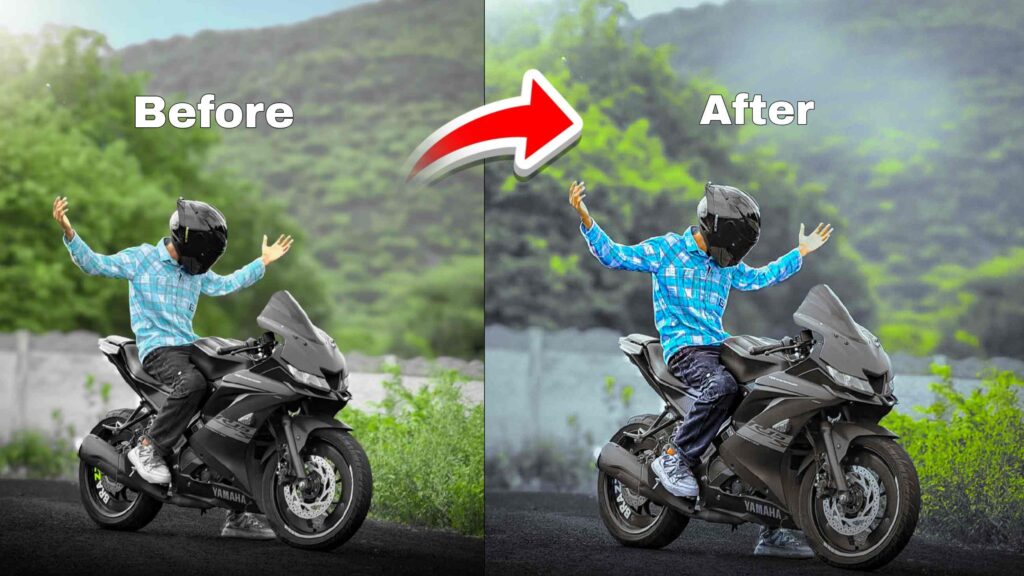
Alternative Caption: Before And After Cinematic Photo Edit Created With Lightroom Cinematic Presets Shared By AJ Prompt.
To save the presets to your device is actually very simple. You just need to go to the second paragraph, where you will get to see an image, and just below the original image , and before and after the result image, you will find a red button with a preset name . And to open the goggle drive you have to click on that button, and you will get to see all the presets available Select the preset you want and tap the download/save button at the top to save it to your mobile .
You can also download alll the presets on your gallery if you want, all you have to do is select them together and import them into Lightroom at once.
Frequently Asked Questions (FAQ)
What Is A Lightroom Cinematic Preset?
A Lightroom Cinematic Preset is a pre-made editing setting that helps transform normal photos into cinematic-looking images with professional colors, contrast, and lighting.
Are These Lightroom Cinematic Presets Free To Download?
Yes, all the presets shared in this article can be downloaded and used for free.
Can Beginners Use Lightroom Cinematic Presets?
Yes, these presets are beginner-friendly and can be applied in just a few clicks without advanced editing knowledge.
Do These Presets Work On Lightroom Mobile?
Yes, these presets work on both Adobe Lightroom Mobile and Lightroom Desktop.
Can I Use These Presets On Indoor Photos?
Yes, some presets work well on indoor photos, but outdoor photos usually provide the best cinematic results.
Will These Presets Reduce Photo Quality?
No, presets only change editing settings and do not reduce the original quality of your photo.
Final Words
Today’s article is literally very much special for those who love editing pictures with the help of Lightroom presets, and we have already shared a lot of presets and will also be sharing more and more presets like this of Lightroom aap at AJ prompts article for more solid cinematic photo editing, and the one more important thing you people need to is that if by any chance a presets might not work for you but you don’t have to worry because we also have solution for this tooo, all you just need to do is you can use the second presets for better results, and then also if you occur any kind of problems while using or saving presets, please do let us know in the comment box.